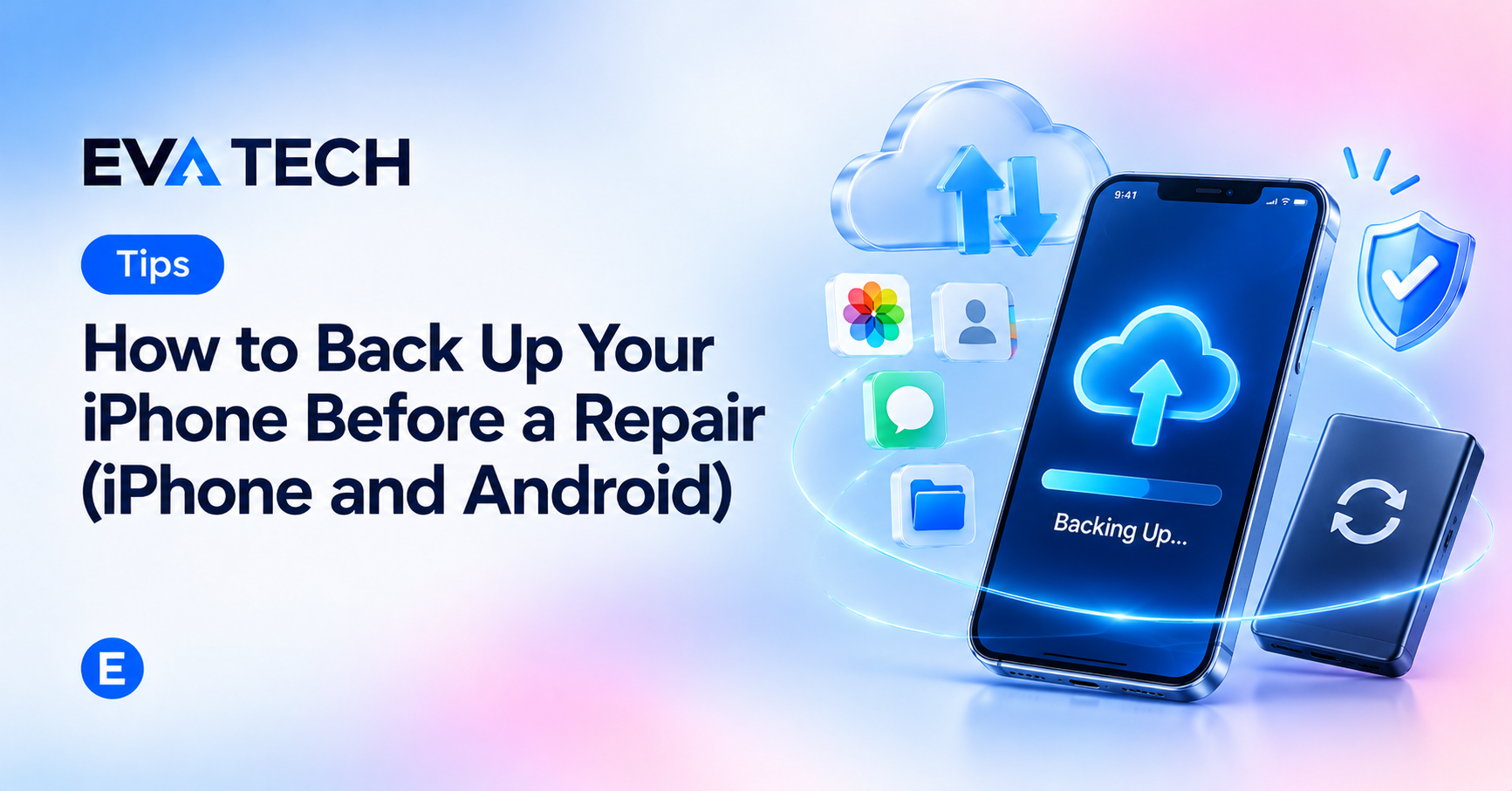
How to Back Up Your Phone Before Repair
Bringing your phone in for repair? Here's how to back up photos, messages and apps on iPhone and Android, and what to sort out before you hand it over.
Most phone repairs are done without touching your data. A screen or battery replacement, for example, doesn't need your photos or messages at all. But repairs don't always go to plan. A phone can need a software reset to fix a fault, a damaged board can stop a phone from turning on again, and water damage can get worse without warning.
That's why a backup is worth ten minutes before you hand any phone over, anywhere. Here's how to do it on iPhone and Android, and what else to sort out first.
First, check what still works
If your screen is cracked but the touch still responds, you can follow the steps below as normal. If the touch has stopped working, don't worry. Plug the phone into a computer you've used with it before and back it up from there (steps below). Either way, tell us about the damage when you bring it in so we can advise on the safest option.
Backing up an iPhone
With iCloud: connect to Wi-Fi and plug the phone in. Open Settings, tap your name, then iCloud, then iCloud Backup, and tap Back Up Now. When it finishes, the screen shows the time of the last successful backup. Check that it says today. Free iCloud storage is limited, so if you see a message saying there isn't enough space, use the computer method instead or buy extra storage for a month.
With a computer: connect the iPhone with a cable. On a Mac, open Finder and select the phone. On Windows, use the Apple Devices app or iTunes. Choose Back Up Now. If you want your health and saved passwords included, choose the encrypted backup option and remember the password you set, because it can't be recovered.
Backing up an Android phone
Menu names differ between makers, so treat these as a guide. Open Settings and look for Google, then Backup (on some phones it's under Accounts and backup). Make sure Backup by Google One is on and tap Back up now. Then open the Google Photos app and check that your photos show as backed up.
On a Samsung, Smart Switch lets you copy everything to a computer, or you can use Samsung Cloud if you already have it set up. If you only want your photos and videos, you can also connect the phone to a computer, switch the USB mode to File Transfer and copy the camera folder across.
Things that need their own backup
- WhatsApp: open Settings, then Chats, then Chat backup, and run a backup now. Without it, your chat history may not come back.
- Authenticator apps: these often don't move with a normal backup. Check each account's recovery options before anything is reset.
- Banking and other apps: make sure you know the login details, as some apps ask you to verify again on a phone that has been reset.
- Notes and voice recordings: check that they sync to your account. If they only live on the phone, copy them somewhere safe.
Know your passwords
You should know your Apple ID or Google account password, and your phone's passcode. If you use text messages to receive login codes, keep your SIM card with you rather than leaving it in the phone. If Find My iPhone or a Google account lock is on, tell us, as some repairs need it switched off. We'll explain this when you bring the phone in.
What not to do
- Don't erase the phone before bringing it in unless you've been told to. A repair technician needs to be able to test it, and an erased phone is much harder to check properly.
- Don't delete things in a panic to free up space for the backup. Free up storage another way, or use the computer method.
- Don't keep charging a wet phone just to finish a backup. If it's been in water, switch it off and read what to do in the first hour.
How long does it take?
A small backup might finish in a few minutes. If you have thousands of photos and videos, it can take an hour or more, especially on slow Wi-Fi. Start it before you leave the house and leave it plugged in while it runs.
Bringing it in
We always try to protect your data during a repair, but a backup is the safest option for any phone, whoever fixes it. If you're not sure how to do any of this, or your screen is too damaged to use, bring the phone to our Widnes Market store or message us on WhatsApp and we'll point you in the right direction. You can see what we repair on our services page or get in touch directly.